Step-by-Step Guide: How to Link Your WhatsApp Account with Mimi
To automatically receive, process, and respond to messages from your customers via WhatsApp, it is necessary to link your phone line to the platform.
Follow this step-by-step guide to complete the setup in just a couple of minutes:
1. Create a new WhatsApp session
* In the side menu of your admin panel, navigate to API Configurations and select WhatsApp Sessions.
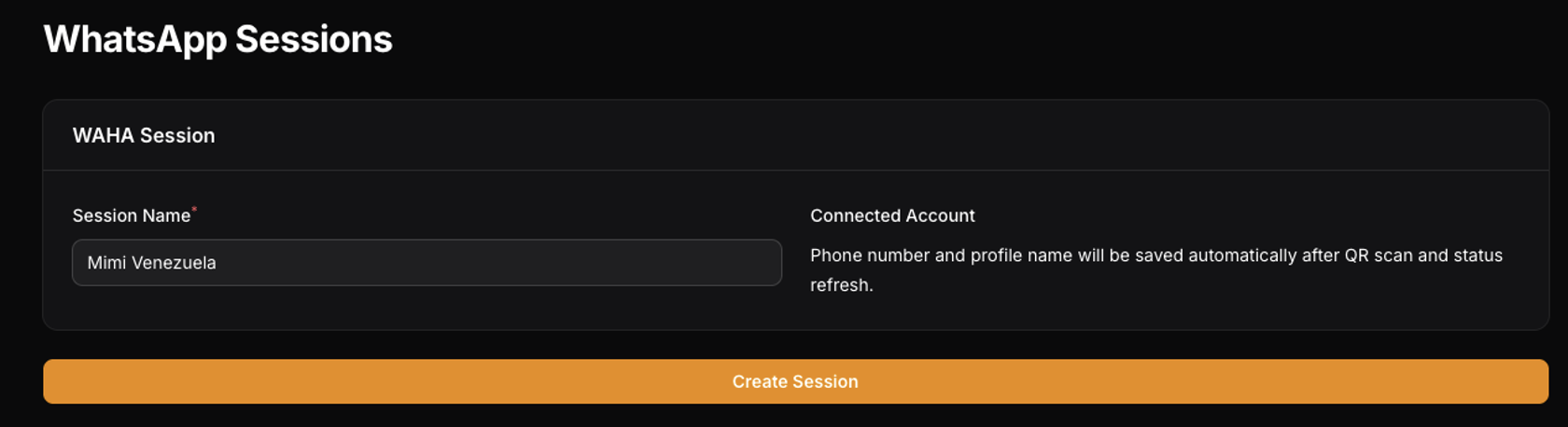
* In the WAHA Session section, locate the Session Name field.
* Enter a descriptive name to identify this line (for example: Mimi Venezuela or your brand/branch name).
* Click on the orange Create Session button to generate the connection environment.
2. Scan the QR code with your WhatsApp
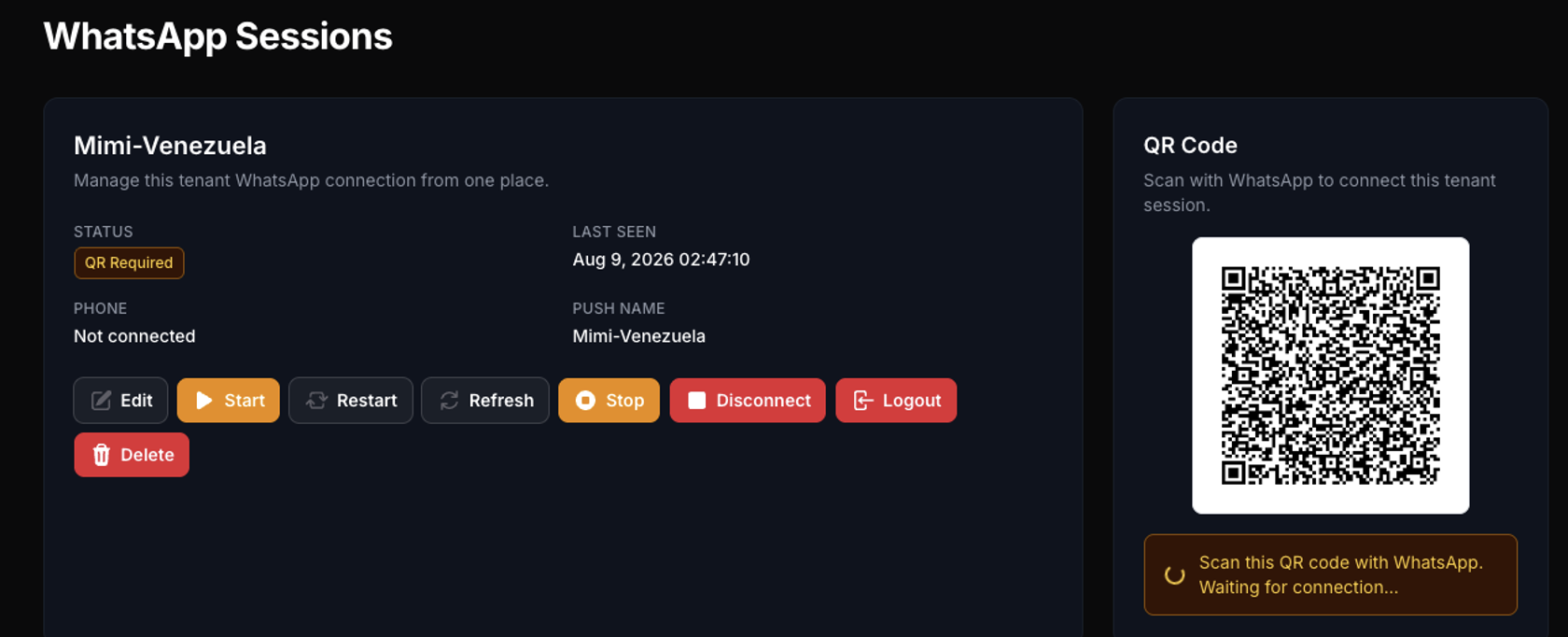
* Once the session is created, the platform will display the status QR Required in the left panel and will generate a QR Code in the right-hand column.
* Open the WhatsApp or WhatsApp Business application on the mobile phone you will use for automated care.
* Go to Settings / Configuration > Linked devices and select Link a device.
* Scan the QR code displayed on Mimi's screen.
3. Confirm successful connection
* By scanning the code, your account details (phone number and profile name) will be automatically saved on the platform.
* The system status will immediately change to connected, and Mimi will be ready to manage your chats.
💡 Support note: If at any time you need to restart the session, update the data, or link a new number, you can use the control buttons (Start, Restart, Refresh, or Disconnect) located below the session details.
IMPORTANT:
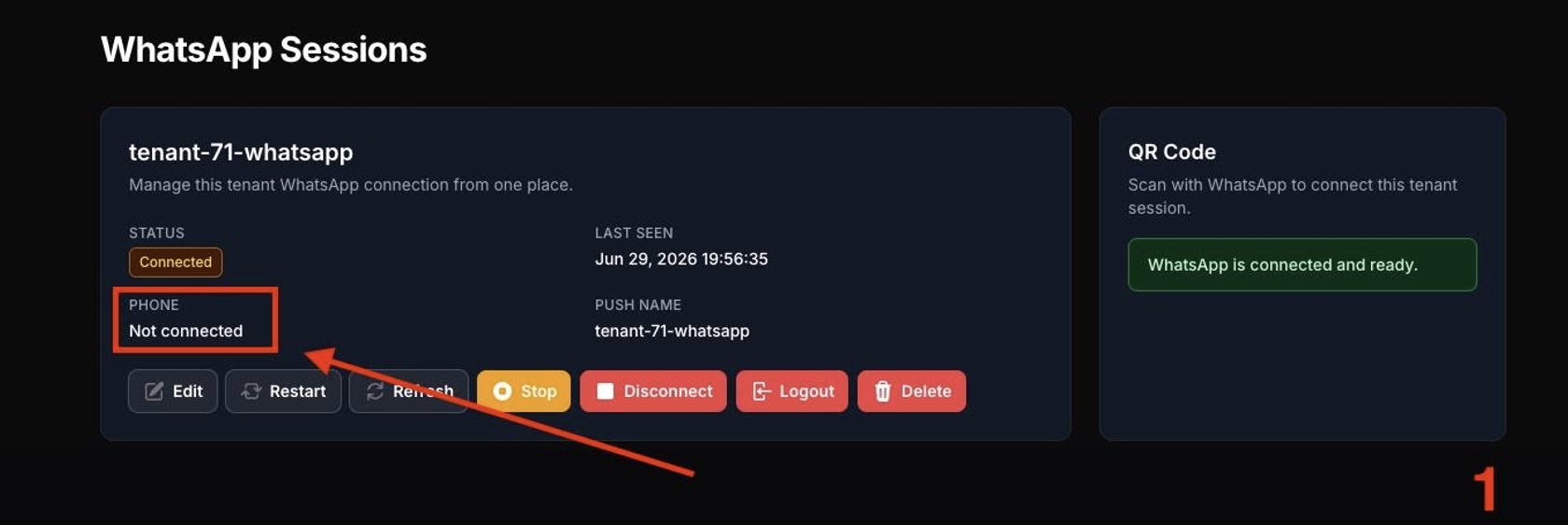
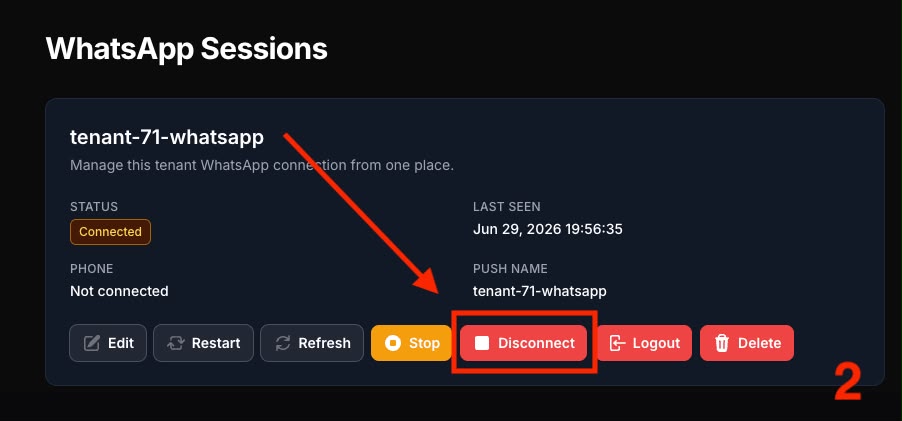
If, when linking your WhatsApp, the platform shows the status STATUS: Connected but the PHONE field displays Not connected, it means the session got frozen in an incomplete state.
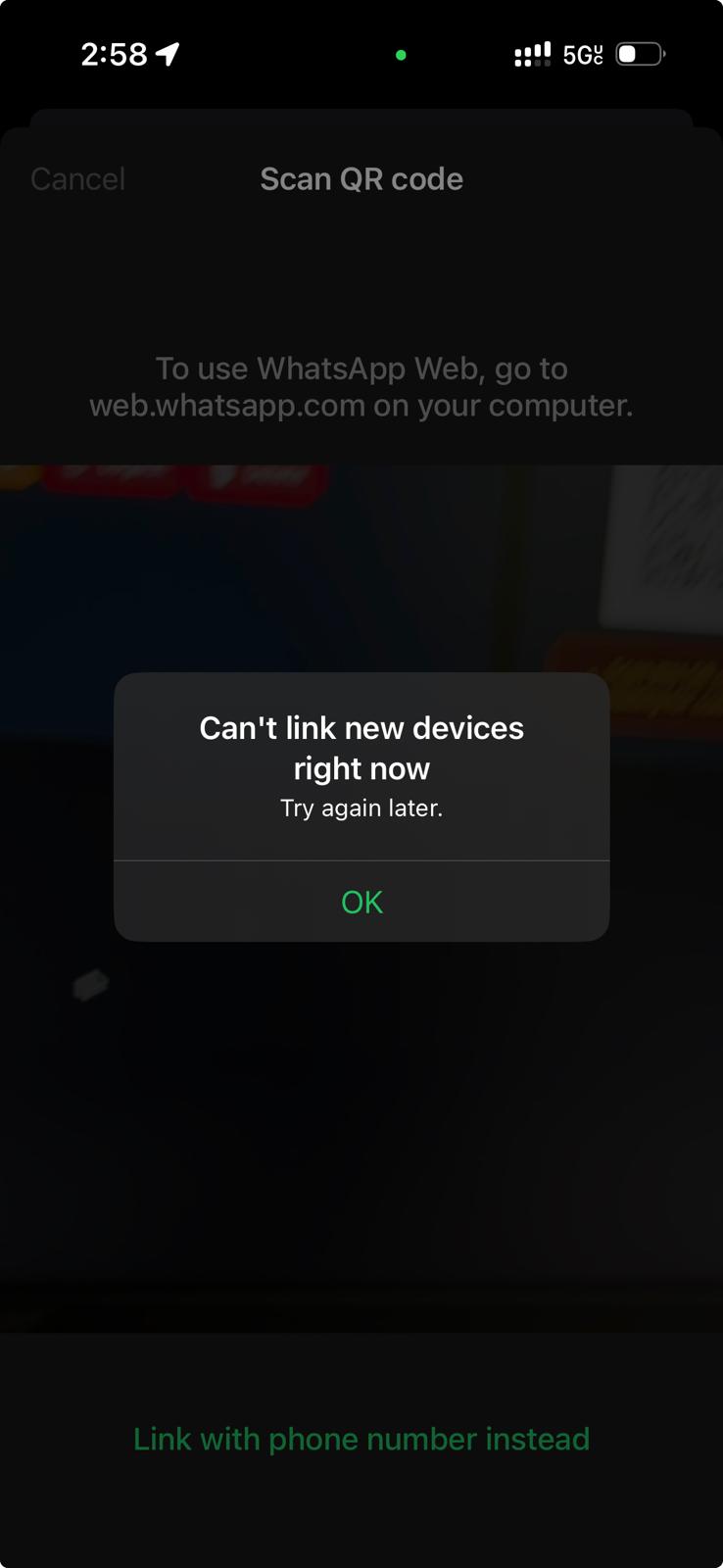
If you attempt to link your phone by scanning the QR code in this state, the WhatsApp application will throw the error: "Can't link new devices right now. Try again later."
Follow this step-by-step procedure to clear the previous session and connect your number correctly:
Step 1: Identify the Incomplete State
* Check the WhatsApp Sessions card to see if the PHONE field displays the label Not connected. Do not attempt to scan the QR code while the card is in this state.
Step 2: Close and Disconnect the Incomplete Session
- On the session card, click the red Disconnect or Logout button.
- Refresh the page in your browser (press F5 or the browser reload button).
Step 3: Delete the Old Session on the Platform
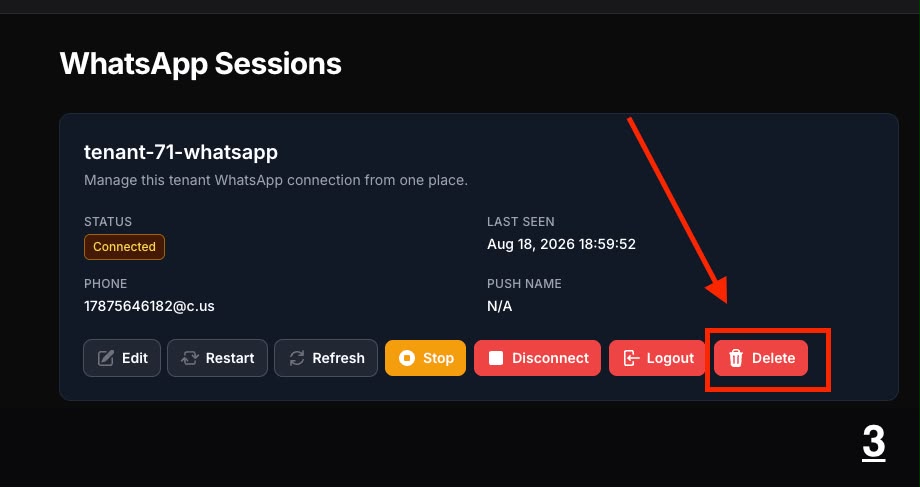
- Once the page reloads, click the red Delete button on the session card to completely remove it.
Step 4: Log Out of the Active Session from Your Mobile Phone
- Open the WhatsApp application on your mobile phone.
- Go to Settings > Linked devices.
- Select the active session previously linked to the platform and tap Log out.
Step 5: Reconnect and Scan the New QR Code
- Return to the platform and create a new WhatsApp session.
- Open WhatsApp on your mobile phone, go to Linked devices > Link a device.
- Scan the new QR code displayed on the screen.
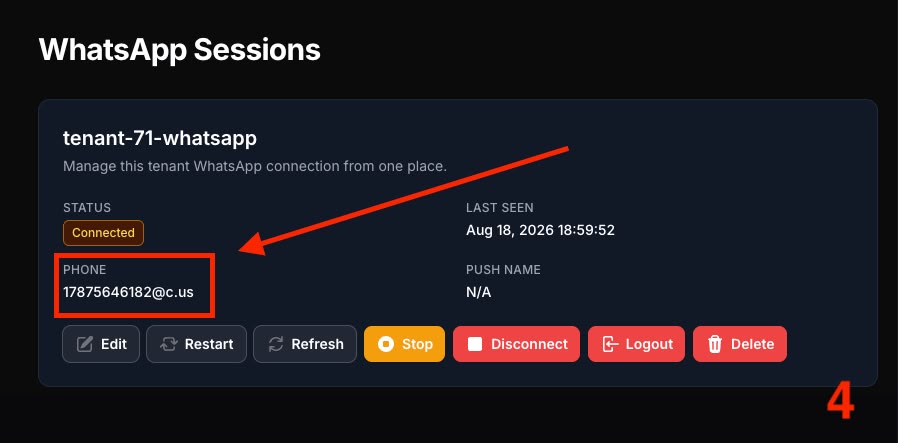
- Verify that on the platform, the PHONE field changes and correctly displays your assigned phone number (e.g., 17875646182@c.us).
Le resultó útil?
( 0 de 0 lo encontró útil )