Step-by-Step Guide: How to Connect Google Calendar with Mimi
To ensure that all appointments booked by your clients via Mimi are automatically and immediately recorded in your calendar, you need to sync your Google account. This process takes less than two minutes.
Follow these simple steps from your admin dashboard:
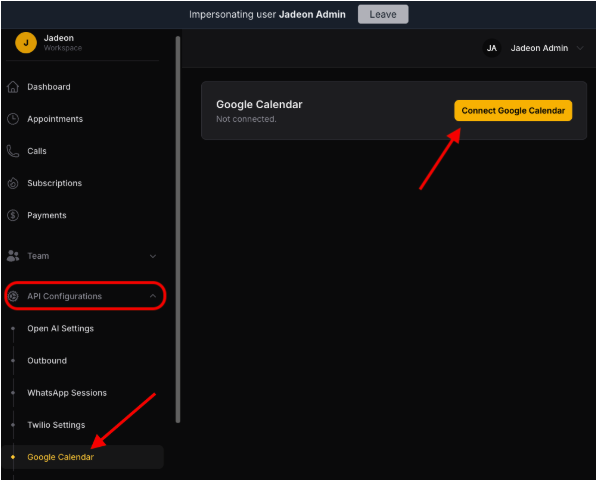
1. Access calendar settings
- In the left-hand menu of your dashboard, expand the "API Configurations" option.
- Click on the "Google Calendar" section.
- You will see a card indicating that the service is not connected. Click the yellow "Connect Google Calendar" button.
2. Select your Google account
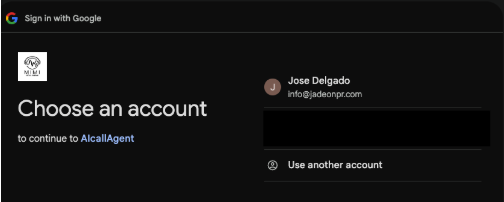
- A Google pop-up window will automatically open.
- Choose the corporate or personal email account where you want your business appointments to be scheduled directly.
3. Confirm the login
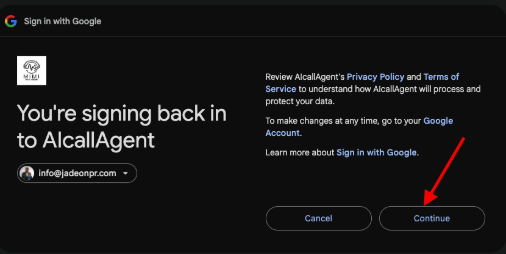
- Google will notify you that you are signing in to proceed to Mimi's scheduling application (AlcallAgent).
- Click the "Continue" button located in the bottom-right corner.
4. Grant synchronization permissions
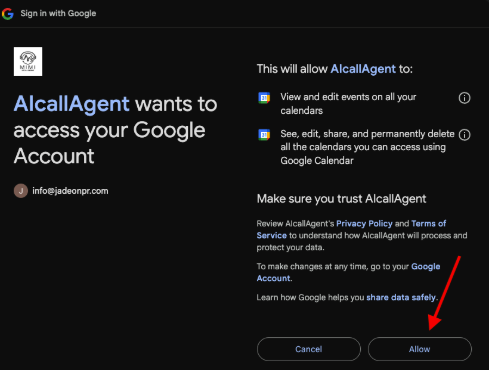
- To allow Mimi to create new appointments and check your availability, Google will ask for permission to view, edit, and organize your calendar events.
- Click the "Allow" button at the bottom to enable the secure connection.
5. Select and save your primary calendar
- The system will redirect you back to your Mimi dashboard. The status will now show as Connected and Verified.
- In the "Calendar" drop-down menu, make sure to select your primary calendar (usually marked as "Primary" next to your account name).
- Click the yellow "Save" button to finish.
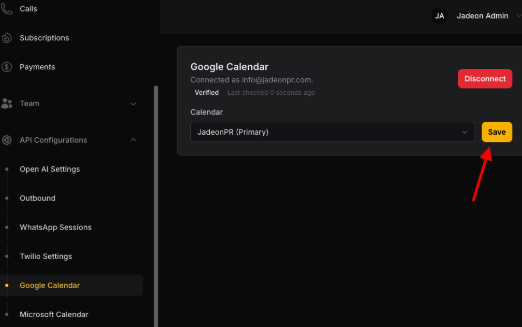
All set! From now on, every appointment Mimi manages will be automatically created in your Google Calendar, saving you from having to enter the information manually or dealing with scheduling conflicts.
Le resultó útil?
( 0 de 0 lo encontró útil )