Step-by-Step Guide: How to Create Your OpenAI API Key for Your Mimi Project
(Exclusive to paid ChatGPT account holders)
To integrate OpenAI's artificial intelligence into your Mimi project, we need to connect your application using an API Key (a secure access key). As a paid ChatGPT user, the process is quick, but it requires a few simple steps on the developer platform.
📌 An important clarification before you begin
Even if you have an active ChatGPT Plus or Team subscription, OpenAI manages the API independently:
- Your monthly subscription covers usage of the standard ChatGPT app.
- API usage is billed via "balance top-ups" (prepaid credits). Usage for your Mimi project is typically very low (just a few dollars a month), and you pay exactly for what the application consumes.
1. Log in to the Platform
- Go to the OpenAI developer website: platform.openai.com.
- Log in using the same credentials (email and password) associated with your paid ChatGPT subscription.
2. Activate API Balance (Prepaid Credits)
To ensure the key works correctly and avoids "limit exceeded" errors, you must add a small amount of funds to the API section:
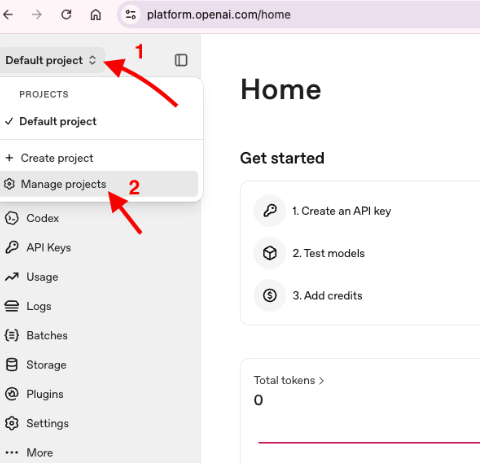
- In the left-hand menu, go to Default project and then click on Manage projects.
- Select the Billing tab, then "Add payment details," and enter your card (it can be the same one used for ChatGPT).
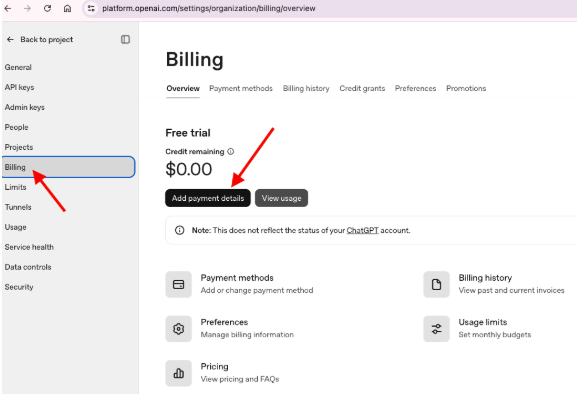
We recommend making a small initial top-up (for example, $5 or $10 USD). This will be more than enough to get the Mimi project up and running.
3. Generate and copy your API key
Once you have a positive balance in the billing section, go to the dashboard to create the key:
- In the left-hand menu, click on API keys.
- Click the "+ Create new secret key" button.
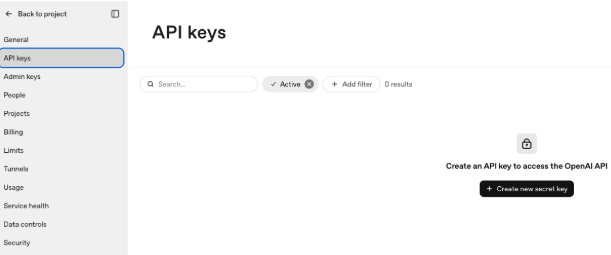
3. Give it a descriptive name (e.g., Mimi Access Key). Click "Create secret key." You will see a long code on the screen starting with "sk-...". Click the copy button next to it.
🔒 Attention! Copy and save that key immediately in a secure place (such as a notepad or password manager). For security reasons, OpenAI will only show you the full code once. If you close the window before saving it, you will have to delete that key and generate a new one.
5. Sending the key to Mimi
Copy the "sk-..." code you just saved and send it to us via our usual communication channel. You're all set! We’ll take care of the rest.
Le resultó útil?
( 0 de 0 lo encontró útil )